Wednesday, 16 December 2009

Karmic Sound

The Intel ICH7 southbridge with AC'97 audio is hardly what I would call rare. And yet, somehow Ubuntu Karmic conspires to screw around with the audio settings for this device.

Apparently, the only sure fire way to get sounds from the integrated speaker is to inadvertently browse to a website with garish embedded sound. If you actually want sound to emanate from the speaker though, you are stuffed.

Y'see there are settings and there are settings. The Sound Preferences program (which is run by the command gnome-sound-control, which in turns runs a program with the name gnome-volume-manager) has no setting for changing the source for the external speaker. So if it gets stuck on "Mic" you get no sound at all. You then have to drop to a terminal and run:
alsamixer

To get to the setting for "Mono Out". You want to use Page Up and Page Down to change between Mic and Mix. Mix being the one you want.

There is of course a separate question of who in their right mind would want to direct the Mic input straight to the Mono Speaker output. A nutter is the answer to that question.

BUT WAIT!

Not content with one way to screw up your day, Ubuntu is ready with yet another. Pulseaudio is a part of Ubuntu that does ... I have no idea what. Pisses me off I suppose.

When this little gem swings into action (which appears from my extensive research to be whenever it fucking feels like it), the aforementioned Sound Preferences Program declares that you have NO OUTPUTS for sound. Alsamixer, gnome-alsamixer, and kmix can all happily see the proper sound outputs, but can you get any sound? No.

So, what you can do then is run:
ps aux | grep pulseaudio

from a terminal. That looks fairly nightmarish, so lets break it down. 'ps' means show me details of running processes. 'aux' is just a series of settings which make 'ps' show you a information about as many processes as possible. The '|' symbol means take the output of the left hand side of the line and 'pipe' it to the command on the right hand side of the line. The command 'grep' means search for, and the 'pulseaudio' is what we are searching for.

So, the command as a whole searches all running processes for pulseaudio and reports back information on it. The key piece of information you need is the 'pid' or program ID. This should be a 4 digit number. It uniquely identifies the program on the machine. The next step is the satisfying:
kill [pid of pusleaudio you found in the last step], e.g.
kill 1234

That should terminate pulseaudio, so when you go back to Sound Preferences, your output devices are back!

Friday, 23 October 2009

get_iplayer

get_iplayer is a very useful command line utility to download, perfectly legally, programs from the BBC's iplayer facility.

Ordinarily, you can download the programs using iplayer's built in p2p system. This may or may not be attractive for you. It is useless if the program you are interested in is not available for download in a format you want for example. The alternative is watching the programs in the website's flash player. This is great, unless your ISP comprises a greater number of arseholes than a proctologist's final year exams. If so, you are likely to find your ISP bandwidth throttles real time video. You can find out if your ISP is doing this here.

If you suffer from this problem, then get_iplayer could be the solution. There are various packages for distributions etc etc available on the website, and it even works in windows. To install it from scratch though, use the following commands from your home folder, or where ever:
wget http://linuxcentre.net/get_iplayer/packages/get_iplayer-current.tar.gz
tar -xzvf get_iplayer-current.tar.gz
cd get_iplayer*
wget http://download.savannah.gnu.org/releases-noredirect/flvstreamer/source/flvstreamer-1.8k.tar.gz
tar -xzvf flvstreamer-1.8k.tar.gz
cd flvstreamer
make flvstreamer
make streams
cd ..

The software will now be installed, with the important flvstreamer addon. Download the iplayer database by running this command from the isntall folder:

./get_player

You can configure default options by running these commands:
./get_iplayer --prefs-add --modes=flashhd,flashvhigh,flashhigh,flashnormal,iphone
./get_iplayer --prefs-add --flvstreamer "./flvstreamer/flvstreamer_x86"
You can check and remove these default options by running:

./get_iplayer --prefs-show
./get_iplayer --prefs-clear

By way of example, you can now download a clip embedded in a BBC webpage by running this command:

./get_iplayer --url="http://news.bbc.co.uk/sport1/hi/motorsport/formula_one/8304965.stm"

You can download live F1, and presumably other sports, with a little more effort. First, install the Firebug add-on for firefox. Now, activate the add-on and browse to the live website. Use the “All Panels” option from the bug icon in the lower right corner of Firefox. Then, left click the bug to bring up the information, select the 'Net' tab, and look for a connection like this:

http://www.bbc.co.uk/mediaselector/4/gtis/?server=cp52115.live.edgefcs.net&identifier=sport6a_hq@s5444&kind=akamai&application=live&cb=59251
Copy that URL, and paste it into the command above as the text between the quotes.

Tuesday, 22 September 2009

Linux Basics - Rename Files

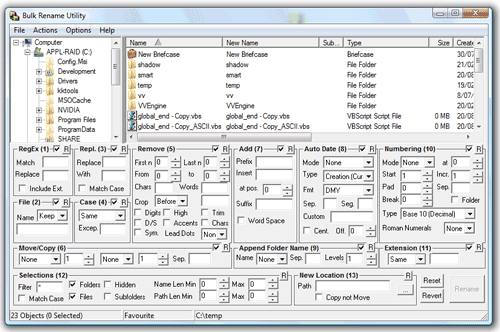
Oh god this was depressing. Say you have a bunch of .jpeg files you want to make into .jpg files. A filemanager on its own is pretty useless for this in either windows or linux. You may now decide to use a bulk rename utility. If you do this, you will be immediately sent in-fucking-sane by a user interface looking like this.

The second option, if you wish to preserve your grip on reality, is to use the command line. In windows the command to rename all .jpeg files to .jpg looks like this:
rename *.jpeg *.jpg
The '*' is a wildcard standing for any filename. So far, so good. The linux version of the command looks like this:
rename -v 's/\.jpeg$/\.jpg/' *.jpeg
I will accept that this is less mind meltingly unintuitive then the hideous UI cited above, but it is a close run thing.

Oh, and another thing. Apparently the usual way to rename files in Linux is to [m]o[v]e them like this:
mv oldfilename newfilename
If you realise that [c]o[p]y is cp, [m]o[v]e is mv, then you may think that [r]ena[m]e is rm. That would be a bad thing, because rm is actually [r]e[m]ove. Apparently no-one thinks this is all utterly bizarre.

Linux Basics - Download and Run Files

In general most advanced distributions of Linux are far more sensible about software installation than windows. Instead of having programs scattered far and wide across the interweb, they are usually collected together in a collection, or repository of files.

Sometime software will depend to some extent on other pieces of software. In windows this can manifest itself in the need for visual basic runtimes, or .net installations. You download a useful looking bit of software, install it, and run it only to find you need to download a FURTHER application 10 times the size just to get the sod to work.

No difference in Linux, except, as I say with more advanced distributions. What is important about the repositories is that not only is all the software in the same place BUT each bit of software knows what OTHER bits of software from the same repository it needs to run. So when you install the software it automatically downloads and installs all the other software it needs to function.

However, sometimes you do want to install some software from outside the standard repositories. If you try to do this in the windows way (right click link, save to disk, double click resulting icon, you are fucked. But it will not tell you what has gone wrong.

What you need to do is tell Linux it can run, or execute the program you have just downloaded. You can do this using most file managers by right clicking, looking for 'permissions'. There should then be an option, probably a checkbox, to turn on the 'execute' permission for the file. Alternatively you can do this on the command line by running the command:
chmod +x /path/to/nameoffile
This [ch]anges the [mod]e of the file [nameoffile] in the directory [/path/to] by [+]adding the e[x]ecute permission, but only for the current user. This means that if you have any other user accounts on the system, they will not be able to execute the file, which may be fine by you. To allow [a]ll users to execute the file, put an 'a' before the '+' sign, so it looks like this:
chmod a+x /path/to/nameoffile
By way of example, here is how you download and install Adobe's 'air' application:
wget http://airdownload.adobe.com/air/lin/download/1.5/AdobeAIRInstaller.bin
chmod +x AdobeAIRInstaller.bin
./AdobeAIRInstaller.bin
You can just copy and paste all three of those commands into a terminal window and it will install. You do not need to open your browser. The first command goes to a file on the [w]eb and [get]s it for you. It downloads the file to the directory you run the command from. We should now know what the second command does. The third command executes the file from [./] the current directory.

Linux Basics - Network Connection Details

If converting from windows, and you find yourself without a network connection (highly likely if using wireless) do not hammer in 'ipconfig', for it shall not work. Try 'ifconfig' instead.

Sunday, 20 September 2009

Linux Basics - Copy/Paste in Terminal

One of the things about linux which really irritates me is the complete lack of documentation of the first things you have to learn. It is as if once people learn these lessons, they do not give them a second thought and assume that the next generation will also absorb them by osmosis.

In a valiant attempt to stop that happening, I present some basics:

To copy text in a terminal window, do not highlight it and press CTRL+C. God no, that would be - oh what's the word - fucking logical. Instead highlight the text and either right click and select copy, or press CTRL+ALT+C.

To paste the text you have just copied, do not try CTRL+V ... etc ..., press CTRL+ALT+V.

Using Evolution with Exchange Server

Evolution is to Outlook, as Thunderbird is to Outlook Express. While Thunderbird will let you get your email from your ISP, and from Google (and sometimes, when it fecking works, hotmail), Evolution's big selling point is that it works with Exchange. Exchange being Microsoft's email server.

To get Evolution working in either Ubuntu or Arch you need to install the following packages:
evolution evolution-exchange

When you have installed these, you configure Evolution as follows:
Add an account and specify type as Exchange Server.
You then set these variables:
Receiving E-mail → Username = [domain]/[logon_name]
Receiving E-mail → OWA URL is https://[mail_server_name]/exchange
Receiving Options → Global Catalogue Server Name = [mail_server_ip_address]
Default → Sent Messages Folder = set to Exchange not Local
The system should auto find the exchange account if you click authenticate.
Public Folders are accessed by going Folder → Subscriptions, and choosing Exchange Server.
[domain] examples would be, smoobandit.com, smoobanditprivate.local

Once you pop in your password you should find that Evolution connects and starts downloading all your mail.

However, this is buggier than a trap for Indiana Jones. Every so often, including more than once per day, it will fubar its connection to the exchange server. It either denies there is any mail, or tells you you have 3 messages in the last 3 months. Sometimes this is accompanied by an error saying that it has lost connection to the backend something or other. Sometimes not. The only way to fix this, that I have found, is to open a terminal and run these commands:
evolution --force-shutdown
cd ~/.evolution/mail/exchange
sudo rm -rfv ./[domain]
Then re-run Evolution and it will re-sync to Exchange. This is OK, unless you have something stored locally and not on the server. For instance, if you were drafting an email when the connection fubarred, then you would lose that because it would only be stored locally. Bastard.