Tuesday, 22 September 2009

Linux Basics - Rename Files

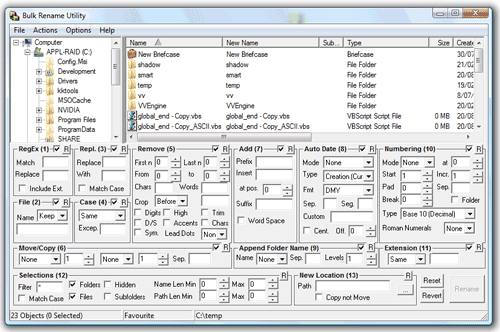
Oh god this was depressing. Say you have a bunch of .jpeg files you want to make into .jpg files. A filemanager on its own is pretty useless for this in either windows or linux. You may now decide to use a bulk rename utility. If you do this, you will be immediately sent in-fucking-sane by a user interface looking like this.

The second option, if you wish to preserve your grip on reality, is to use the command line. In windows the command to rename all .jpeg files to .jpg looks like this:
rename *.jpeg *.jpg
The '*' is a wildcard standing for any filename. So far, so good. The linux version of the command looks like this:
rename -v 's/\.jpeg$/\.jpg/' *.jpeg
I will accept that this is less mind meltingly unintuitive then the hideous UI cited above, but it is a close run thing.

Oh, and another thing. Apparently the usual way to rename files in Linux is to [m]o[v]e them like this:
mv oldfilename newfilename
If you realise that [c]o[p]y is cp, [m]o[v]e is mv, then you may think that [r]ena[m]e is rm. That would be a bad thing, because rm is actually [r]e[m]ove. Apparently no-one thinks this is all utterly bizarre.

Linux Basics - Download and Run Files

In general most advanced distributions of Linux are far more sensible about software installation than windows. Instead of having programs scattered far and wide across the interweb, they are usually collected together in a collection, or repository of files.

Sometime software will depend to some extent on other pieces of software. In windows this can manifest itself in the need for visual basic runtimes, or .net installations. You download a useful looking bit of software, install it, and run it only to find you need to download a FURTHER application 10 times the size just to get the sod to work.

No difference in Linux, except, as I say with more advanced distributions. What is important about the repositories is that not only is all the software in the same place BUT each bit of software knows what OTHER bits of software from the same repository it needs to run. So when you install the software it automatically downloads and installs all the other software it needs to function.

However, sometimes you do want to install some software from outside the standard repositories. If you try to do this in the windows way (right click link, save to disk, double click resulting icon, you are fucked. But it will not tell you what has gone wrong.

What you need to do is tell Linux it can run, or execute the program you have just downloaded. You can do this using most file managers by right clicking, looking for 'permissions'. There should then be an option, probably a checkbox, to turn on the 'execute' permission for the file. Alternatively you can do this on the command line by running the command:
chmod +x /path/to/nameoffile
This [ch]anges the [mod]e of the file [nameoffile] in the directory [/path/to] by [+]adding the e[x]ecute permission, but only for the current user. This means that if you have any other user accounts on the system, they will not be able to execute the file, which may be fine by you. To allow [a]ll users to execute the file, put an 'a' before the '+' sign, so it looks like this:
chmod a+x /path/to/nameoffile
By way of example, here is how you download and install Adobe's 'air' application:
wget http://airdownload.adobe.com/air/lin/download/1.5/AdobeAIRInstaller.bin
chmod +x AdobeAIRInstaller.bin
./AdobeAIRInstaller.bin
You can just copy and paste all three of those commands into a terminal window and it will install. You do not need to open your browser. The first command goes to a file on the [w]eb and [get]s it for you. It downloads the file to the directory you run the command from. We should now know what the second command does. The third command executes the file from [./] the current directory.

Linux Basics - Network Connection Details

If converting from windows, and you find yourself without a network connection (highly likely if using wireless) do not hammer in 'ipconfig', for it shall not work. Try 'ifconfig' instead.

Sunday, 20 September 2009

Linux Basics - Copy/Paste in Terminal

One of the things about linux which really irritates me is the complete lack of documentation of the first things you have to learn. It is as if once people learn these lessons, they do not give them a second thought and assume that the next generation will also absorb them by osmosis.

In a valiant attempt to stop that happening, I present some basics:

To copy text in a terminal window, do not highlight it and press CTRL+C. God no, that would be - oh what's the word - fucking logical. Instead highlight the text and either right click and select copy, or press CTRL+ALT+C.

To paste the text you have just copied, do not try CTRL+V ... etc ..., press CTRL+ALT+V.

Using Evolution with Exchange Server

Evolution is to Outlook, as Thunderbird is to Outlook Express. While Thunderbird will let you get your email from your ISP, and from Google (and sometimes, when it fecking works, hotmail), Evolution's big selling point is that it works with Exchange. Exchange being Microsoft's email server.

To get Evolution working in either Ubuntu or Arch you need to install the following packages:
evolution evolution-exchange

When you have installed these, you configure Evolution as follows:
Add an account and specify type as Exchange Server.
You then set these variables:
Receiving E-mail → Username = [domain]/[logon_name]
Receiving E-mail → OWA URL is https://[mail_server_name]/exchange
Receiving Options → Global Catalogue Server Name = [mail_server_ip_address]
Default → Sent Messages Folder = set to Exchange not Local
The system should auto find the exchange account if you click authenticate.
Public Folders are accessed by going Folder → Subscriptions, and choosing Exchange Server.
[domain] examples would be, smoobandit.com, smoobanditprivate.local

Once you pop in your password you should find that Evolution connects and starts downloading all your mail.

However, this is buggier than a trap for Indiana Jones. Every so often, including more than once per day, it will fubar its connection to the exchange server. It either denies there is any mail, or tells you you have 3 messages in the last 3 months. Sometimes this is accompanied by an error saying that it has lost connection to the backend something or other. Sometimes not. The only way to fix this, that I have found, is to open a terminal and run these commands:
evolution --force-shutdown
cd ~/.evolution/mail/exchange
sudo rm -rfv ./[domain]
Then re-run Evolution and it will re-sync to Exchange. This is OK, unless you have something stored locally and not on the server. For instance, if you were drafting an email when the connection fubarred, then you would lose that because it would only be stored locally. Bastard.

Saturday, 19 September 2009

Testing Windows 7

So, there is a release candidate of Windows 7 out. I want to test this by using it in a virtual machine. It installs fine, but will not see the VMWare network, audio or USB drivers. Goddammit.

To solve the network problem you need to ensure that you are using the e1000 virtual hardware. In order words, your .vmx file needs to include:
ethernet0.virtualDev = "e1000"

To get the USB working, you need to ensure that both scsi and ehci are running, with these lines in your .vmx file
scsi0.present = "TRUE"
scsi0.pciSlotNumber = "18"
ehci.present = "TRUE"
ehci.pciSlotNumber = "19"

I have no fucking idea how to get the audio to work.

[UPDATE]
This software fucking hates me. Once I had setup all of the above, USB worked flawlessly in the Virtual Machine. However, once I shut it down and restarted, it was fubarred. I checked the .vmx file and found to my horror that the .pciSlotNumbers for scsi- and ehci were now '-1'. Brilliant, why the fuck has it done that? Solution - change it back to the text above and WRITE PROTECT the .vmx file. Job done.

Thursday, 10 September 2009

Linux Documentation

I have complained before about the really crappy documentation that you encounter when trying to trawl through linux manuals. Two recent examples may shed some light on the nature of my complaint.

Firstly, in my last post I talked about the xdg-mime command and how it is used to change the default application for various filetypes. What I did not say was how frustrating the documentation was to deal with. For instance, go and look at the manual page for xdg-mime. It all starts well enough:
xdg-mime — command line tool for querying information about file type handling and adding descriptions for new file types
That's a nice intro, and sets the scene well. We know what we are talking about. Also, the description gives us some more useful information:
The xdg-mime program can be used to query information about file types and to add descriptions for new file types.
Good. Good. Keep it coming. Lets have a look at the synopsis of the command:
xdg-mime query { filetype | default }
Right, so we type "xdg-mime query" and then what? Oh - filetype. Right, so I am interested in PDFs. Lets try:
xdg-mime query pdf
Aaaaaaand:
xdg-mime: unknown query type 'pdf'
Fucking great. The system must know about PDFs because it is opening them now (with GIMP, which is fucking annoying and the whole point of this little command line adventure). What could I be doing wrong?

Slowly the light dawns. When it says 'filetype' that is not a variable, that is literally what you type. So you follow 'xdg-mime query' with the word 'filetype'. Right, brilliant. So why the fuck could the error report not say:
xdg-mime: unknown query type 'pdf'.  Valid querys are 'filetype' and 'default'.
It's not that hard to type out six words.

OK, so we follow 'xdg-mime query' with either "filetype" or "default". I can follow that. Fine. So what do I type after filetype or default? Lets see...
query filetype FILE: Returns the file type of FILE in the form of a MIME type.
Right, so I now try:
xdg-mime query filetype forfuckssake.pdf:
Aaaaaand:
xdg-mime: file 'forfuckssake.pdf:' does not exist
Yes it fucking does I am looking at it! So I check the spelling, and the path. I try "./" before the filename, because god knows linux gets picky about finding stuff not in the path - even when you are in the same fecking directory as the file you want to use! Nada.

Then a further little light dawns. See the colon at the end of the filename? What if maybe, just maybe, that shouldn't be fucking there? What if the instructions, which specifically appended a colon to the end of the filename, and which I am following carefully, not just being slap happy with my colons in general, were put together with all the skill and panache of a recovering alcoholic with the DTs trying to construct a house of cards? Leave off the colon = command works as it should. Genius.

Secondly, I have been farting around with the larch system for making live usb installations of Arch. One of which I am using to post this, as a matter of fact. To cut a long story short, I wanted to add some extra packages to the install which were not in the repositories. The Larch manual states:
It is possible to include your own 'custom' packages in the installation. Maybe ones you have compiled yourself, e.g. from the AUR, or modified versions (fixes or customizations) of standard packages. To do this you need to put your packages in a directory and run gen-repo - which requires python - on this directory (run it without arguments to get usage instructions). Then place an entry for this new repository in your 'pacman.conf' (in the profile or else in the working directory). If your packages replace some in the existing repositories, your custom repository needs to come before those repositories in 'pacman.conf'. Any packages you want installed now just need to be listed in addedpacks.
Larch also sets up a pacman.conf file which contains this little nugget of information:
# An example of a custom package repository. See the pacman manpage for
# tips on creating your own repositories.
#[custom]
#Server = file:///path/to/custom
This sounds promising and looks straightforwards. So I put my packages in a directory, run gen-repo and make a change to pacman.conf. Only I can't fucking find gen-repo. I mean it is not in the directory I installed larch into. Where the fuck can it be? I eventually trace it to ./larch/run/ where I find it is actually called gen_repo, not gen-repo. Fan-fucking-tastic waste of time.

So I then run the command on the directory I have assembled my custom packages in. It makes a new file in that directory called nameofdirectory.db.tar.gz.

Right so I ask you now - how do I "place an entry for this new repository in" my pacman.conf file? I try referencing this new file directly in the Server: line. That doesn't work. I try just making the server line link to the directory the new file is in. That still doesn't work.

I eventually discover, through trial and error no less, that what I should have been doing was to have the Server: line point to the directory the new file was in, uncomment the line #[custom] above AND change the word 'custom' in it to the NAME of the new file LESS the .db.tar.gz bit. Oh - of course, silly me, how fucking simple. I mean, it is all laid out so clearly in those helpful manual files. All these steps are so fucking transparent I nearly walked right into them.

Give me fucking strength. Is it something to do with linux? Are the developers so fucking delighted to get their software to actually work that they piss off down the pub as soon as it compiles? With the inevitable result that they are shit-faced drunk when it comes to writing the documentation? And then, THEN, when you ask a question you are told to RTFM? Really? Well stick your RTFM right UYFA.